 Project Controls 360
Schedule changes between P6 updates
Dates move for two reasons: progress, or someone changed the schedule. This page compares two updates and lists every change to durations, logic, constraints, lags and activities.
12types of change tracked
62logic links added in the example month
43constraint changes in the example month
Any 2updates can be compared
The problem
When a new update arrives, the forecast may look better or worse, but nobody can easily see whether that came from real progress or from edits to durations, logic or constraints. Comparing two P6 files by hand takes days.
How it works
- Match every activity across two updates. Each activity is compared field by field.
- Count changes by type. Duration, constraint and lag type changes, logic added and removed, activities added, deleted and renamed, and changed actual dates.
- See the detail. Click any count to see the activities, with the old and new values.
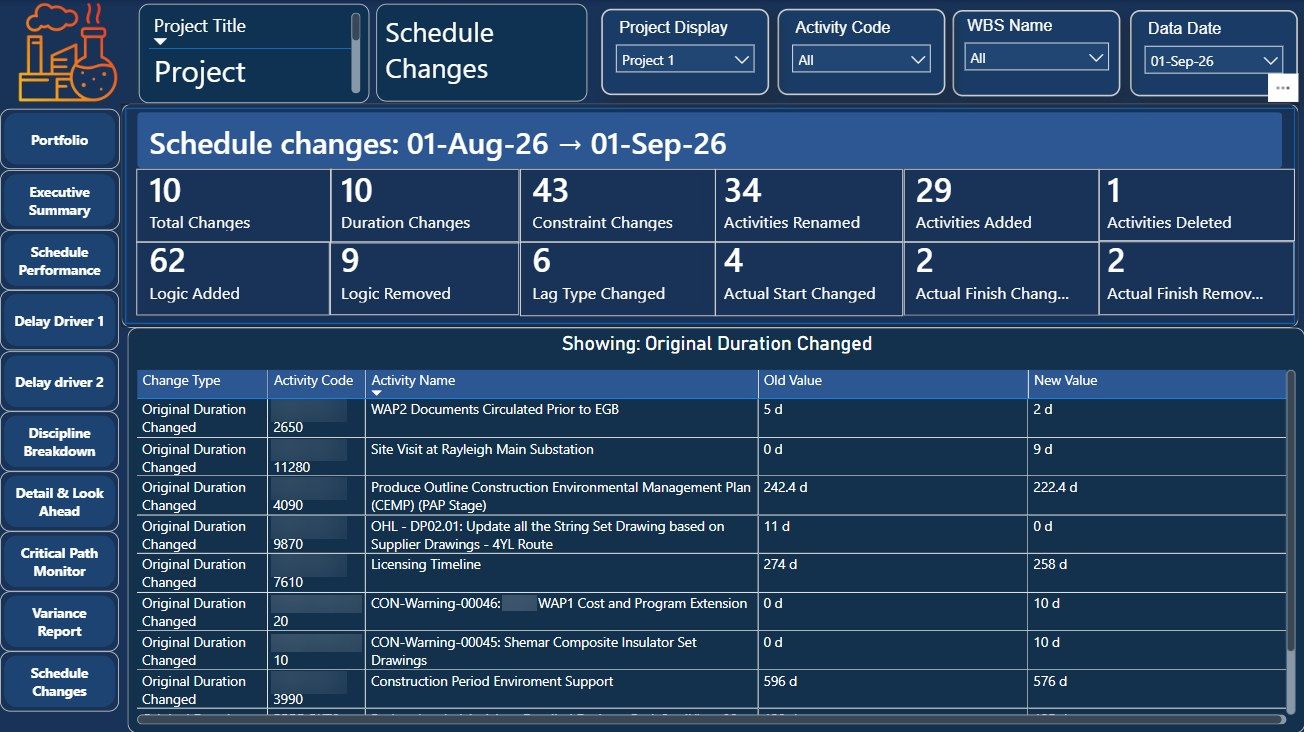
Walkthrough
Result
Changes between updates are visible in minutes, so unexplained edits are questioned before the forecast is accepted.
Project and client identifiers are hidden in the screenshots.